RESEPI LITE/Ultra LITE System Overview #
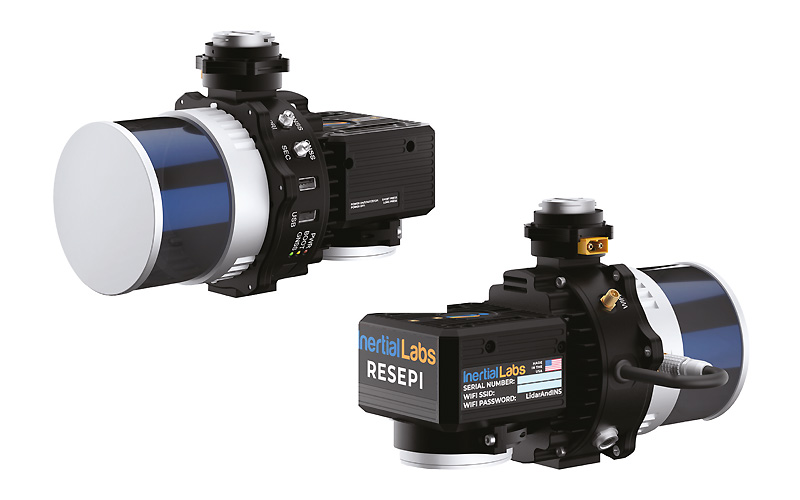
RESEPI (Remote Sensing Payload Instrument) is an integrated LiDAR mapping payload developed for UAV, vehicle-based, and handheld mobile platforms. It combines a high-precision Inertial Navigation System (INS), GNSS receiver, onboard computer, configurable LiDAR sensor, and optional RGB camera into a single, calibrated system ready for deployment.
System Components #
- GNSS + INS Integration
- Each unit includes a tightly coupled GNSS and IMU system for accurate position and orientation calculations. This data is used for georeferencing LiDAR and imagery in post-processing.
- Onboard Computer
- A rugged embedded computer handles real-time data capture, power management, and system control. It supports concurrent LiDAR and camera logging without the need for an external device.
- LiDAR Sensor Options
- RESEPI supports multiple sensor models including those from Livox, Velodyne, Ouster, and Teledyne. Sensor selection depends on the specific mapping application (e.g., narrow corridor scanning vs. wide-area terrain collection).
- Optional RGB Camera
- When included, the factory-installed camera captures synchronized images for point cloud colorization and boresight calibration. The camera may occupy one of the USB ports on the unit.
- GNSS Antennas
- All systems require a primary (PRI) GNSS antenna for positioning. Dual-antenna configurations provide a secondary (SEC) input for improved heading accuracy.
Power and Storage #
- Power Input
- RESEPI operates from a 9–45V DC source and is compatible with standard connectors including XT60 and Binder.
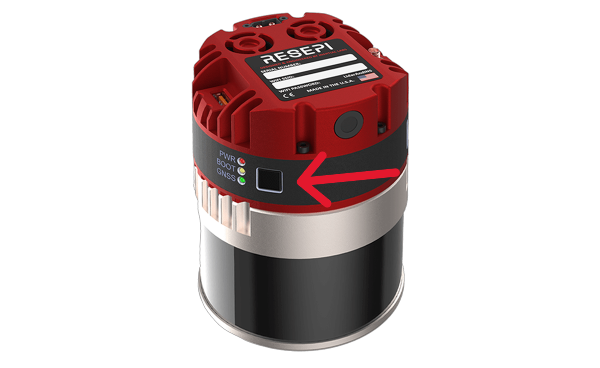
- Power On: Apply power via the supplied cable or drone. Connect the GNSS antenna, insert the USB drive, and remove the camera cover if using the camera. Tap the power button and wait for all three LEDs to light up.
- Start Logging: Once the unit is fully booted (camera clicks twice, LiDAR spins), tap the power button again. The BOOT LED will flash red and green, indicating data logging is active.
- Stop Logging: Tap the power button again. The BOOT LED will stop flashing.
- Power Off: Hold the power button for ~4 seconds. Release it once LEDs begin turning off. For a forced shutdown (not recommended), hold for ~10 seconds until all lights go off.
- Important: Always power on the drone before the payload, and shut down the payload before turning off the drone. Wait for the BOOT LED to stop flashing before disconnecting power to avoid data loss.
- RESEPI operates from a 9–45V DC source and is compatible with standard connectors including XT60 and Binder.
- Data Logging
- The included USB drive provides space for hours of uninterrupted data logging.
- RESEPI LITE systems log strictly to external USB drives.
- Multi-color LED indicators provide system status, including logging activity and GNSS status.
Connecting to the LiDAR Payload #
- Via Wi-Fi :
- Power On the Payload:
- Begin by powering on the payload. Hold the power button until the unit powers up.
- Connect to the Payload’s Wi-Fi:
- On your host computer (tablet, smartphone, or PC), open the Wi-Fi settings.
- Look for the unit’s wireless network, identifiable by its unique SSID on the device’s label, which will appear as “RESEPI – ######”.
- Connect to this network using the password “LidarAndINS” (also on device’s label). If this password does not work, contact your local vendor or customer support for assistance.
- Access the Web-GUI:
- Open your preferred web browser.
- Enter the IP address (unquoted) “192.168.12.1” in the address bar.
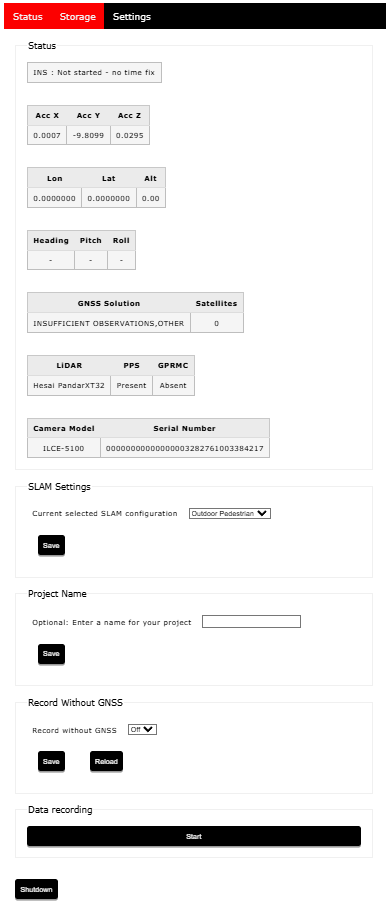
- The LiDAR payload’s web-GUI will appear, as shown in below.
- Power On the Payload:
Data Processing Workflow #
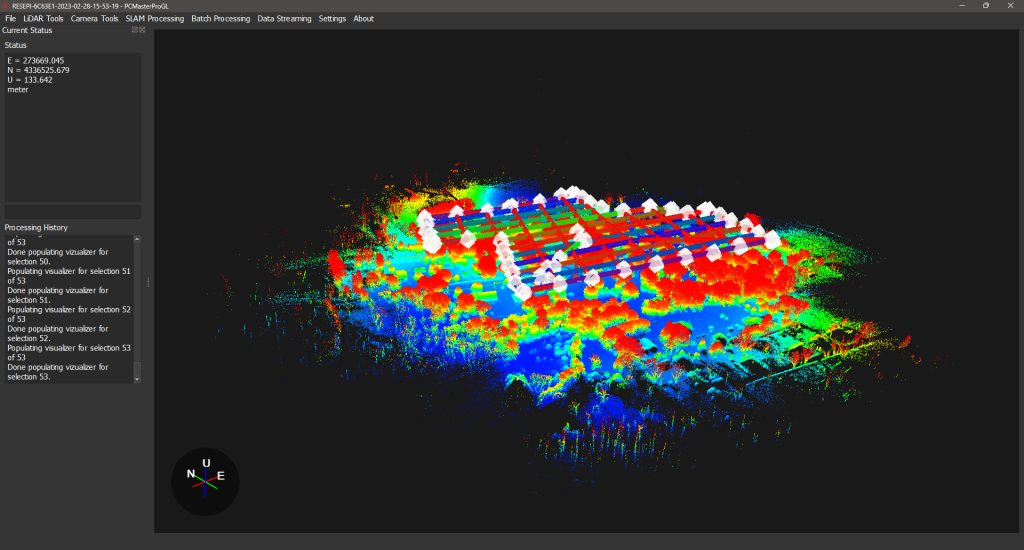
RESEPI data is post-processed using PCMasterPro, which performs:
- Trajectory calculation using tightly coupled GNSS/IMU data
- LiDAR point cloud georeferencing
- Batch processing, SLAM algorithms, strip alignment, and more
- RGB image alignment and boresighting
- Coordinate transformations and export to various standard formats
Datasets can be further handled in third-party software such as TerraSolid, LiDAR360, Pix4D, and CloudCompare.