This dialogue is only available to users with a SurveyPro license, activated in the PCMasterProGL Licensing menu. The license provides access to features like ground/non-ground classification, accuracy assessments, debiasing, DEM generation, and contour creation.
Field entries can be configured to how the user would like. Each tab of the dialogue shows a different step of the SurveyPro pipeline. If only wishing to run a certain step, the user can decide to only check this box and skip other features. After configuring the window to the users processing liking, the Run button may be pressed to processed the selected cloud file.
The user can navigate the dialogue by either selecting individual tabs or using the “Previous” or “Next” buttons.
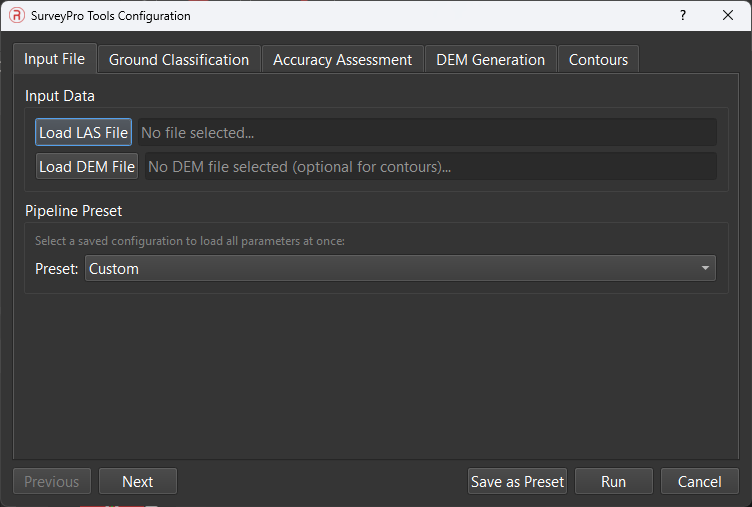
All field entries are in the units of the units related to the cloud file input (ft or m). Ensure all fields are properly entered to account for these changes. GCP’s and cloud files but be in the same vertical and horizontal coordinate frame to ensure a proper assessment. Below shows the configuration menu pop-up when the user selects “SurveyPro Tools” within PCMasterPro.
Load LAS File – opens File Explorer to allow the user to select the .las file that’s being used for processing. This is necessary for running any of the SurveyPro features besides the contour creation which requires a DEM input.
Load DEM File – opens File Explorer to allow the user to select the DEM file that’s being used for processing. This is necessary for running contour creation. Users can first run the normal pipeline to create this DEM before creating contours.
Pipeline Preset – Shows a dropdown of the custom preset along with any saved profiles from past runs. These presets can either be set to populate the entire pipeline.
Previous – Navigates to the previous tab
Next – Navigates to the next tab
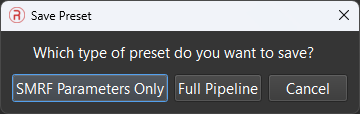
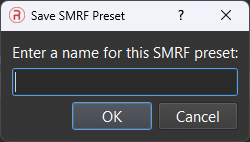
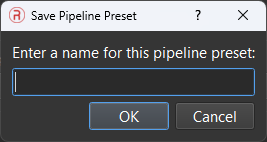
Save as Preset – Prompts the user to save the currently filled settings as either SMRF only (only ground classification settings) or Pipeline (full workflow). Prompt is followed by a name input. If the user desires to delete a saved preset, find the file named “surveyToolsPresets” within the install directory, open in notepad, and delete the line containing the cooresponding preset name. This file must be saved and PCMasterPro must be restarted for changes to take effect.
Run – Runs all selected processes and shows current progress in the status window of PCMasterPro
Cancel – closes the window without running
Figure: Shows Input File tab for SurveyPro Tools
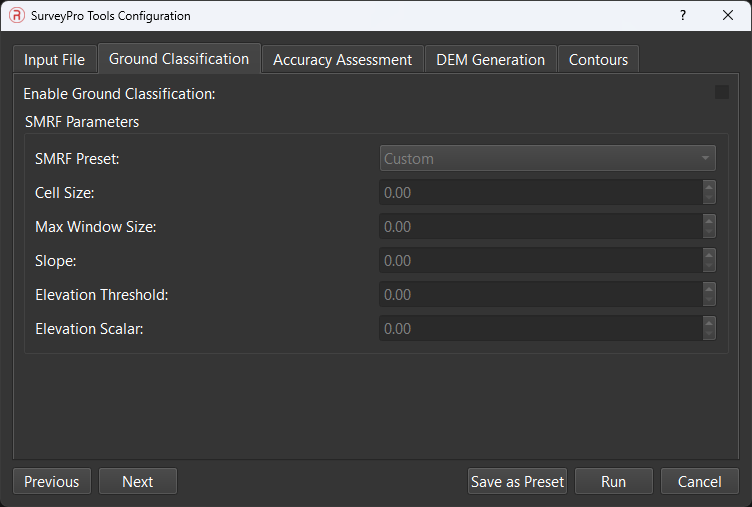
Ground Classifications Options – checkbox to enable/disable SMRF ground classification. When enabled, points are classified as ground (Classification = 2) or non-ground (Classification = 1) using the Simple Morphological Filter algorithm, which iteratively applies morphological opening operations on an elevation grid to detect bare earth.
Presets – contains 3 preset profiles for different cloud sceneries or custom option for user defined settings saved as presets.
Cell Size – defines the cell size (in meters) of the elevation grid used for morphological operations. Smaller values preserve more terrain detail but require higher-resolution input data and significantly increase computation time. This is a fundamental parameter that controls the spatial resolution at which the algorithm analyzes terrain. Typical range: 0.5–5.0 meters depending on data density and terrain detail required.
Max Window Size – the maximum search radius (in meters) for morphological opening operations. The algorithm grows the window size linearly through successive iterations until reaching this maximum. This parameter must be larger than the largest non-ground feature you want to remove (e.g., building footprint or tall vegetation canopy). If set too small, flat-roofed buildings may be misclassified as ground because the window doesn’t expand enough to “see over” them. Typical range: 12–30 meters.
Slope – dimensionless scaling factor (rise/run ratio) that controls maximum terrain steepness the algorithm permits during morphological comparisons. A slope of 0.2 means the algorithm permits approximately 1 meter of elevation rise over 5 meters of horizontal distance. In rugged terrain with steep slopes, use higher values (0.3–0.5); on flat terrain, use lower values (0.1–0.2) to aggressively remove vegetation and structures. Typical range: 0.1–0.5.
Elevation Threshold – maximum vertical distance (in meters) a point can be above the morphologically-smoothed ground surface to still be classified as ground. This is the primary parameter controlling classification sensitivity. Smaller values create stricter classification—the algorithm requires points to closely match the smoothed surface. Larger values are more permissive, accepting points from low vegetation or terrain undulations. This parameter directly controls how many points are classified as ground. Typical range: 0.3–1.0 meters.
Elevation Scalar – scale factor for the elevation.
Figure: Shows Ground Classification tab for SurveyPro
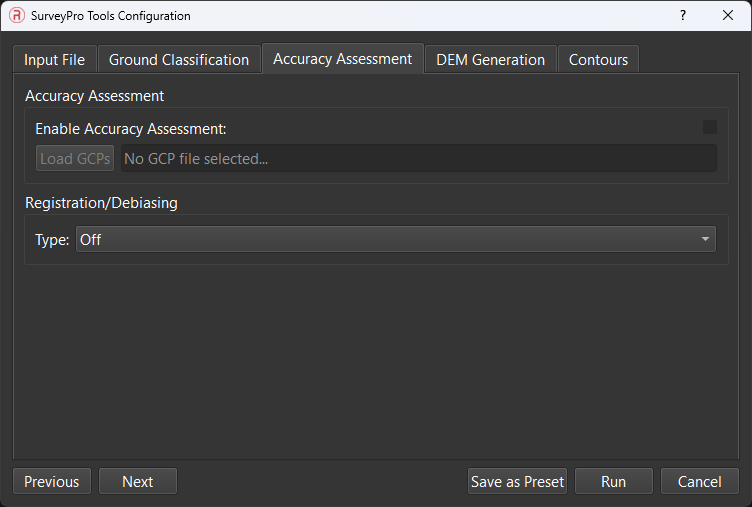
Accuracy Assessment – checkbox for accuracy assessment.
Load GCPs – this button opens File Explorer for the selection of GCP coordinates.
Registration/Debiasing – checkbox for registration and debiasing in relation to local values or GCPs.
Figure: Shows Accuracy Assessment tab for SurveyPro Tools
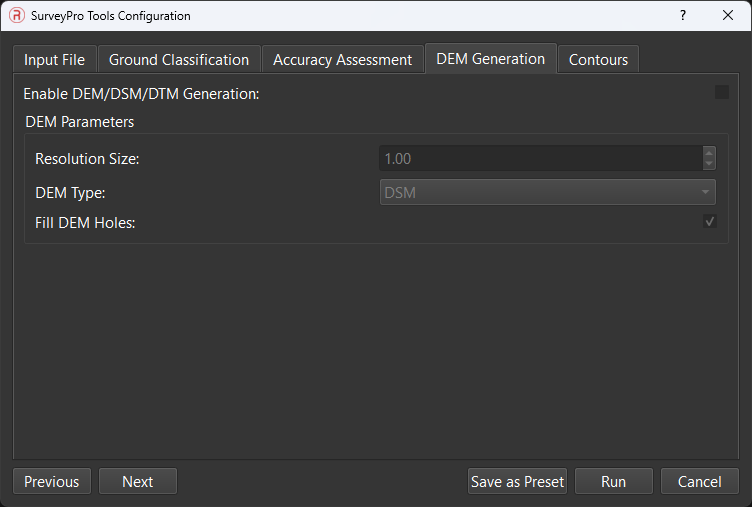
DEM/DSM/DTM Generation – checkbox for generation of elevation, surface and terrain models
Resolution Size – defines the size of each pixel in the generated DEM, DSM, or DTM. A smaller resolution creates a more detailed model, while a larger one results in a more generalized representation of the terrain.
DEM Type – choose between a DSM or DTM
Fill DEM Holes – attempts to fill in areas where no points are collected with estimated point spreads. This helps with random blank spaces caused by using ground classified points for DEM creation.
Figure: Shown DEM Generation tab in SurveyPro Tools
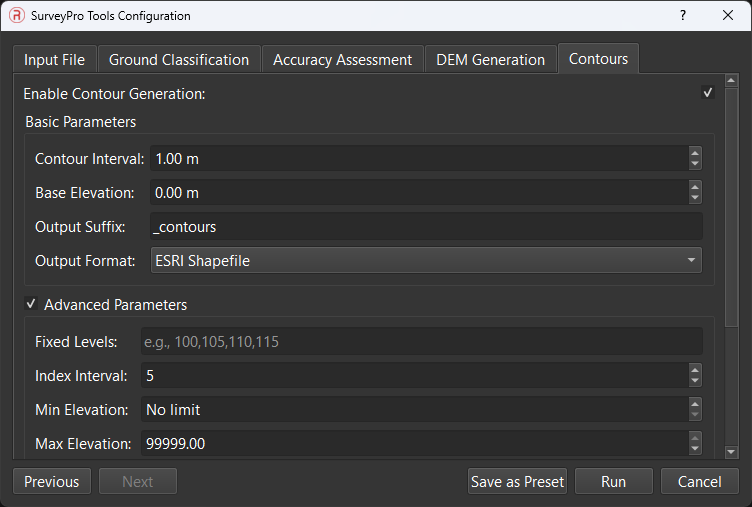
Contours – checkbox for enabling/disabling the contour generation feature. There must be a DEM input within the Input File tab in order for this toolset to be taken advantage of.
Contour Interval: Defines the constant vertical distance between consecutive contour lines generated from the source raster.
Base Elevation: Sets the vertical offset relative to zero from which the contour intervals are calculated.
Output Format: Determines the geospatial vector driver used to write the output file, such as ESRI Shapefile or GeoJSON.
Fixed Levels: The start of the advanced settings. Designates a specific list of elevation values to extract as contours, independent of the standard interval generation.
Index Interval: Sets the periodic interval at which “major” contours are categorized, often used to differentiate line weights in cartography.
Min Elevation: Establishes the lower elevation threshold, excluding any source data below this value from the contour generation process.
Max Elevation: Establishes the upper elevation threshold, excluding any source data above this value from the contour generation process.
Layer Name: Specifies the internal name assigned to the vector layer within the output dataset.
Elevation Field: Defines the name of the attribute column where the calculated elevation value for each contour geometry is stored.
ID Field: Defines the name of the attribute column used to store a unique numerical identifier for each contour feature.
NoData Value: Identifies the specific pixel value representing missing or void data in the source raster so it can be ignored during processing.
Precision: Controls the number of decimal places used when writing the elevation values to the output attribute table
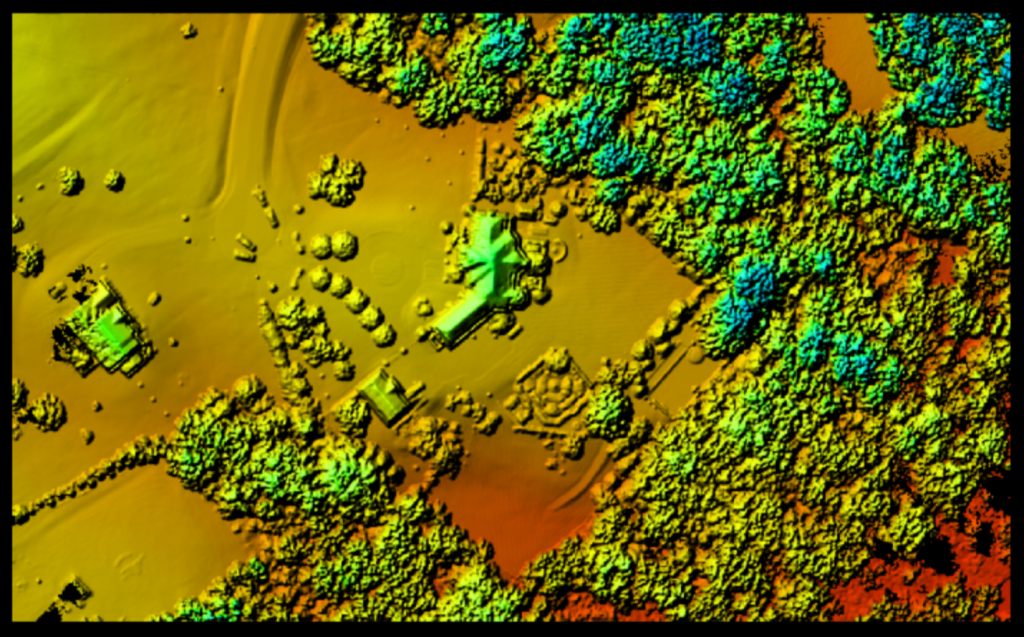
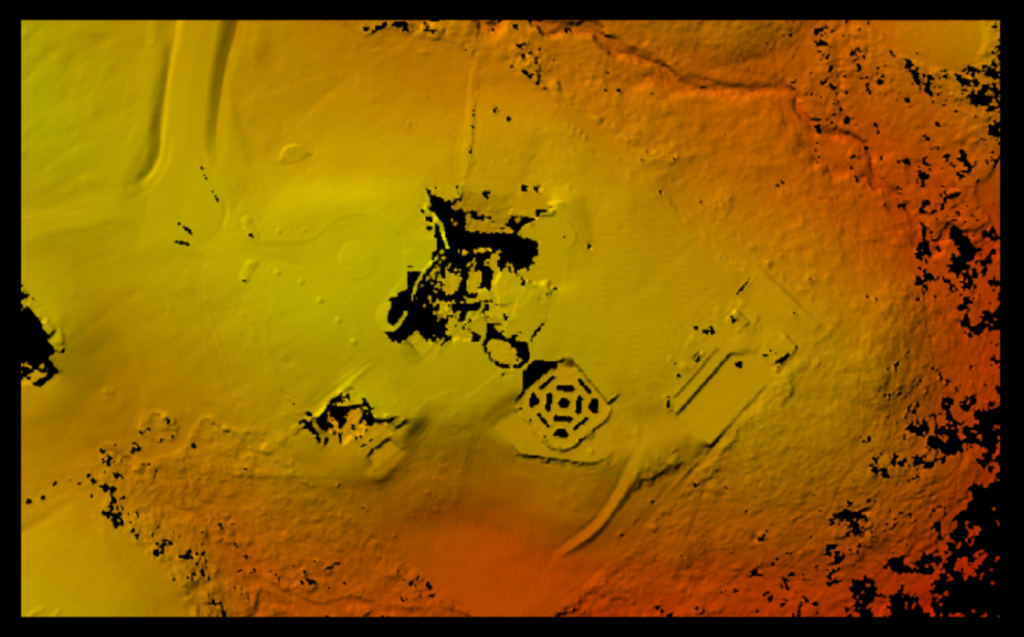
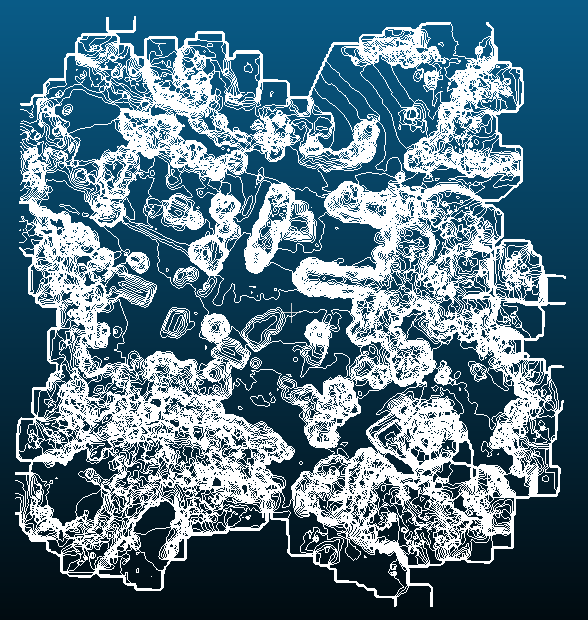
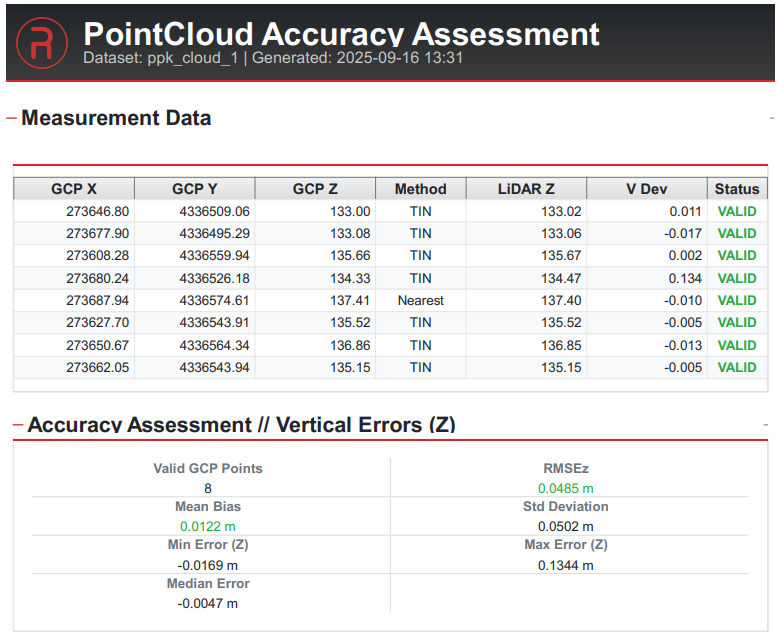
As previously explained, this feature set allows for access to ground/non-ground classification, accuracy assessments, debiasing, DEM generation, and contours. Below are examples of these outputs that are currently supported.
Figure: Shows ground/non-ground classification using SurveyPro Tools
Figure: Shows DSM creation using SurveyPro Tools
Figure: Shows DTM creation using SurveyPro Tools
Figure: Shows example of Contour creation with DSM input within SurveyPro Tools
Figure: Shows accuracy assessment report from SurveyPro Tools
To observe the entire process in practice, we suggest viewing the video recording below.