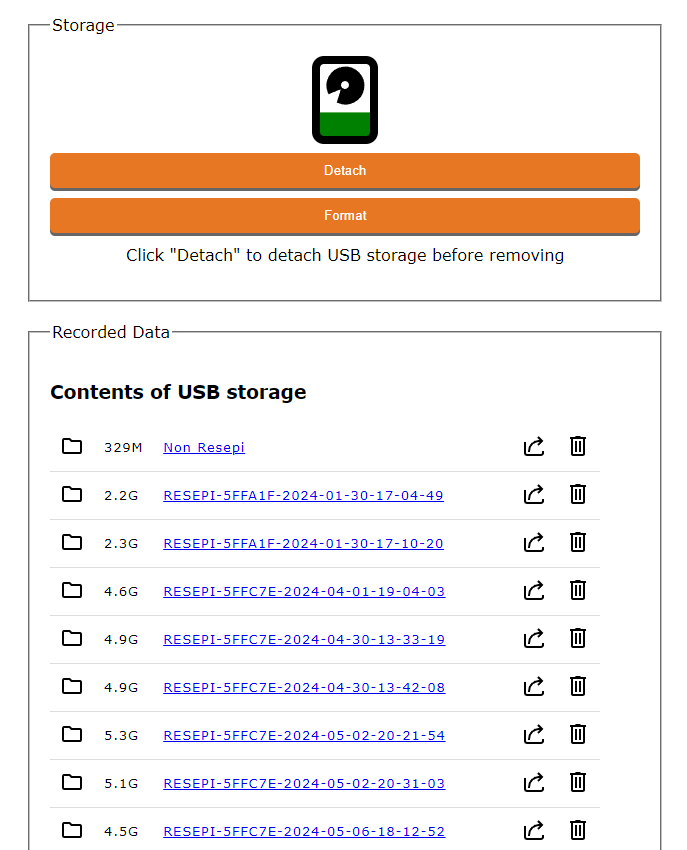
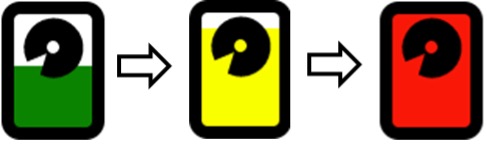
The Storage Menu Window provides access to files on the USB storage device connected to the unit and to format it in the correct format, as shown in Figure 1. Click “Re-attach” to ensure the USB drive is recognized, allowing you to view, download, and manage stored files.
The Format formats the attached USB to FAT32 and deletes any old data on it. This offers the user the ability to quickly clean and correctly format the USB to work with the RESEPI.
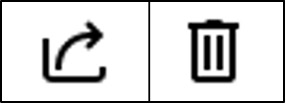
Download: Click the download button to transfer files to your host computer, as shown in Figure 3.
Erase: Click the trash button to delete files, as shown in Figure 3. A confirmation message will prompt you to confirm the deletion before removing the data.
Note: For faster data transfer, it is recommended to remove the USB drive from the payload and connect it directly to the host computer, as scan files are typically large.
To safely remove the USB drive, click the “Detach” button.
Note: To protect the user from accidentally attempting to record data while the USB is unattached, the user does not have the ability to “Start” data recording in the “Status” window when the USB is unattached. When unattached the user will see the message shown below in Figure 4.
Figure 4. Message displayed when trying to record data while USB is unattached.
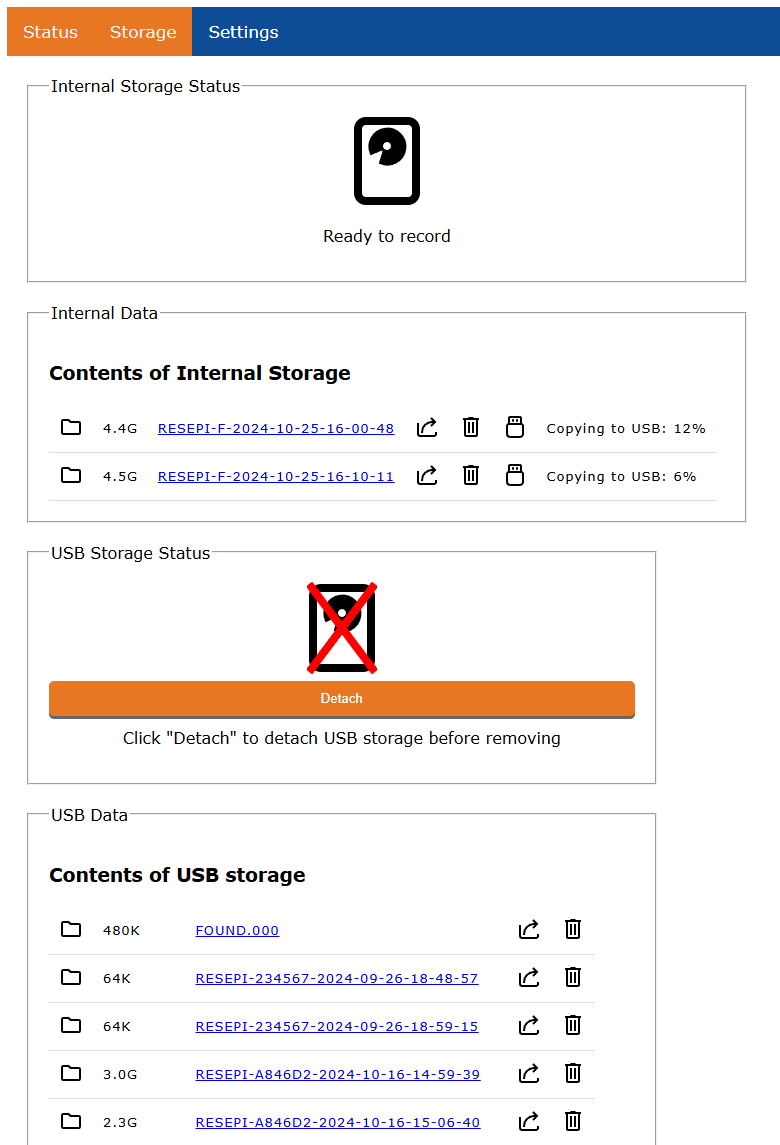
The Storage Menu Window provides users with access to files stored on the SSD connected to the RESEPI or EchoONE unit, as shown in Figure 5. It also includes an option to format the SSD with the correct file system to ensure compatibility and optimal performance. Through this menu, users can browse the contents of the SSD, manage stored data, and transfer or download files from the unit to their PC.
The interface displays the storage status and file directory of the internal SSD first. If a USB storage device is connected to the RESEPI or EchoONE unit, its status and contents are shown as well. This allows users to efficiently monitor available storage space, manage data, and ensure proper storage functionality.