RESEPI Payload Firmware Updates

RESEPI User Manual

How to Upgrade/Downgrade Firmware on RESEPI Devices: #

Periodically, the Inertial Labs support team will send out new firmware updates. These updates are key when encountering an issue, so please try to use the most up-to-date version. Use this process when updating or rolling back the RESEPI unit firmware.
Step 1: Download the Firmware #

  • Visit lidarpayload.com
  • Navigate to:
    • Resources > Software and Firmware
  • Download the desired firmware file (latest or older version).

Step 2: Load Firmware to USB #

  • Copy the firmware file onto a RESEPI-compatible USB drive.
  • Do not rename the firmware file.

Step 3: Insert USB and Power On RESEPI #

  • Plug the USB drive into a USB port on the RESEPI.
  • Connect power using your standard power source (XT60, Binder, Ethernet, etc.).

Step 4: Access the Web GUI #

  • Connect to the RESEPI’s Wi-Fi network (SSID and password on unit label).
  • Open a browser and go to 192.168.12.1.
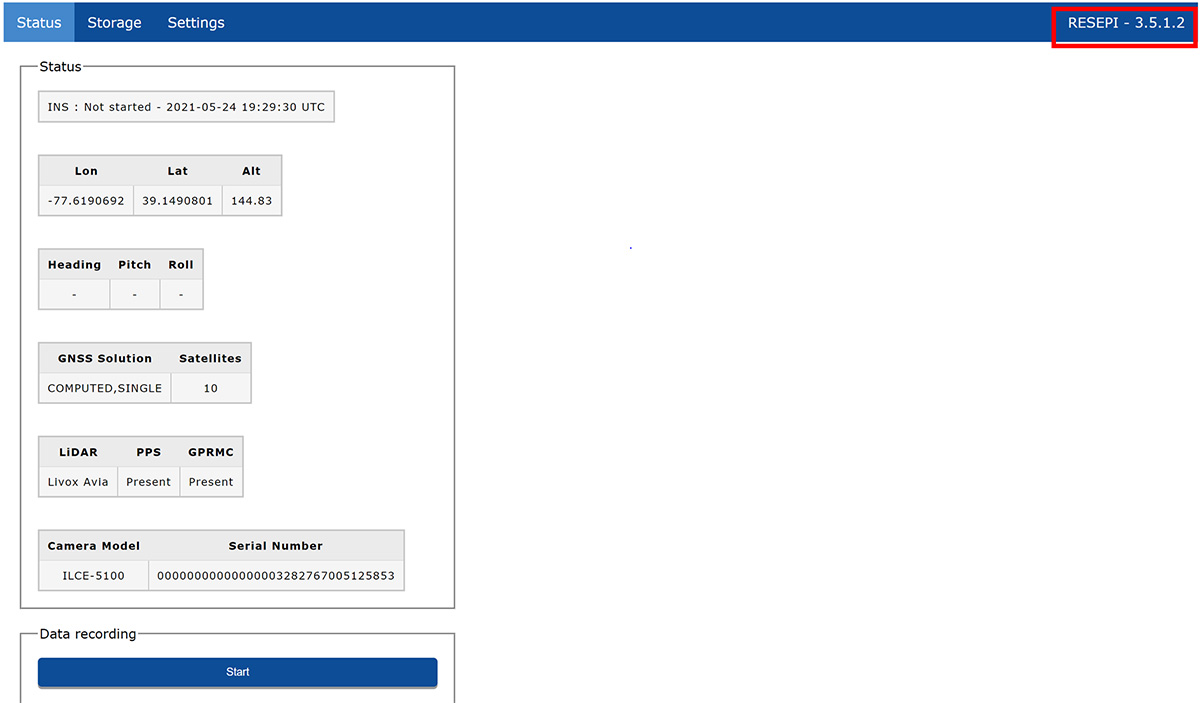
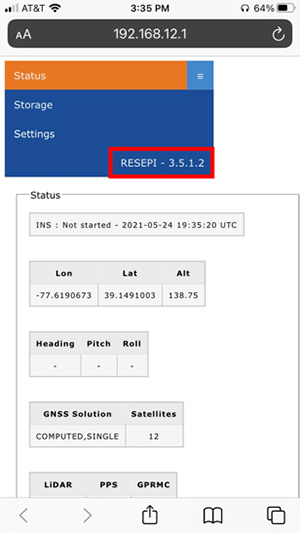
  • Current version can be seen in the Status page on a desktop or mobile device, as shown in Figure 1 and Figure 2.
Figure 1. Web GUI interface.
Figure 2. Web GUI mobile intarface.

Step 5: Install Firmware #

  • In the GUI, go to:
    • Settings > Firmware
  • Select the firmware file from the list as show in Figure 3.
  • Begin the install process.
  • Wait for the GUI to prompt that the unit is rebooting.
Figure 3. Firmware update menu.

Step 6: Confirm Firmware Update #

  • Reconnect to the GUI after the unit reboots.
  • Go to the Status page.
  • Confirm the new firmware version appears at the top.

Step 7: Clean Up #

  • Once the new version is confirmed, safely remove the firmware file from the USB drive.

To see the firmware upgrade/downgrade process clearly, we offer you a short video, which is posted below
