User Controls While Using PCMasterPro #
PCMasterPro’s 3D view can be navigated and controlled using a combination of mouse buttons, keyboard keys, and the mouse wheel. Here’s a guide to the main controls:
Looking Around:
- Press and hold the Left mouse button, then move the mouse to change the view direction.
Rotating the Camera:
- Press and hold Shift and the Left mouse button, then move the mouse to rotate the camera around its axis.
Panning (Moving the Focus Horizontally):
- Press and hold Ctrl and the Left mouse button, then move the mouse.
Moving the Focus Vertically (Up and Down):
- Press and hold Ctrl, Shift, and the Left mouse button, then move the mouse.
Zooming In and Out:
- Scroll the mouse wheel forward to zoom in (move closer to the focus).
- Scroll the mouse wheel back to zoom out (move away from the focus).
Adjusting Perspective:
- For a telephoto view (smaller perspective), press and hold Shift and scroll the mouse wheel forward.
- For a wide-angle view (wider perspective), press and hold Shift and scroll the mouse wheel back.
Slice Control:
- To move a slice back and forth, press Ctrl and scroll the mouse wheel.
- To change the slice thickness, press Shift, Ctrl, and scroll the mouse wheel.
Right Mouse Button Actions:
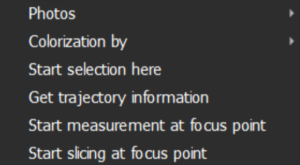
Right-clicking opens a context menu with various options:
- Photos: Select or deselect images to be viewed along the trajectory if photos are loaded into the project.
- Start, Restart, or Finish Selection: Start a path selection at the current mouse position.
- Get Trajectory Information: Retrieve trajectory information at the closest location along the trajectory line to the mouse cursor.
- Colorization by: Switch the point cloud color scheme based on selection, laser, intensity, height, or Return ID.
- Measurement Tools: Start, restart, or stop measuring areas of the cloud in 3D space.
- Slicing: Start, restart, finish, or cancel slicing of the cloud starting at the current focus point.
Touchpad Compatibility:
- These controls also apply to touchpads, including multi-touch ones. The mouse wheel actions can be replicated with the zoom-in multi-touch gesture.