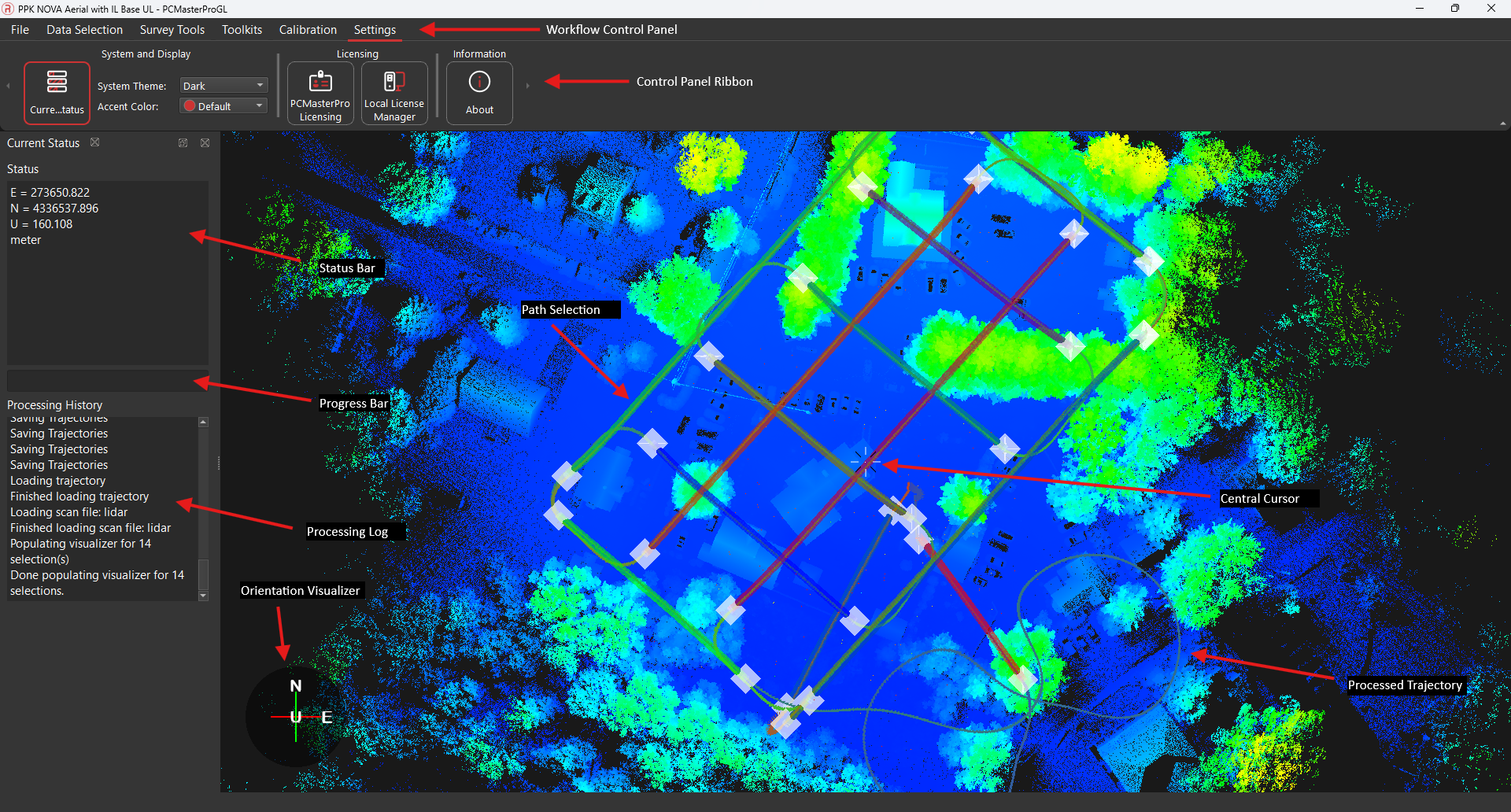
Main Window Overview #
The main window of PCMasterPro consists of several key components that help users navigate and interact with their data:
- Workflow Control Panel:
- File: Options for saving, creating, opening, exporting a project, applying Strip Align, final outlier removal, etc.
- Data Selection: Options for editing the data selections including path management, reprocessing, outlier removal, filters, and image import.
- Survey Tools: Options for coordinate tranformations, ground control entries, and SurveyPro Tools.
- Toolkits: Options for Data Streaming, Batch Processing, and SLAM Processing.
- Calibration: Options for device calibration including angular/linear offsets, laser offsets, camera calibrations, autorefine, and orientation adjustments.
- Settings: Options for the window view and theming along with license management and software information.
Status Bar:
- Displays the local plane position of the cursor and the dimensions of the measurement box, providing real-time feedback as users interact with the 3D view.
- Progress bar shows the progress of various processes.
- Processing history shows the log of status messages displayed during processing.
- Contains Quality tab for tracking post processing metrics for standard PPK datasets
Main 3D View:
- Shows the current trajectory and the point clouds of currently enabled path segments and lasers. It includes visual indicators for the local plane axes, the cursor’s current position, and the measurement box if measurements are being taken. This view provides a comprehensive visual representation of the data and allows users to interact with and analyze the captured information.