PCMasterProGL provides automated post-processing powered by NovAtel Waypoint Inertial Explorer for users with the PCMasterPro PPK bundle and an annual Inertial Explorer license. Activate your Inertial Explorer license using the following steps:
Open Local License Manager
Navigate to Settings > PCMasterPro Licensing within PCMasterProGL. Simply paste the license and click “Activate”.
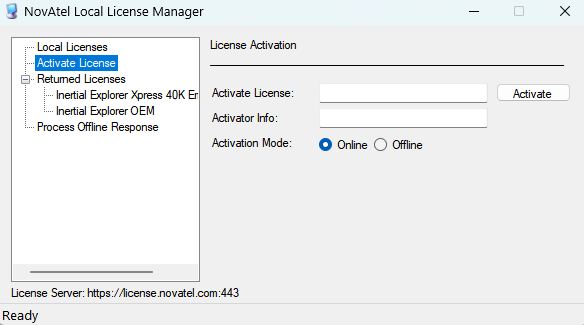
Alternatively, search for “Local License Manager” in the Windows search bar or run the LLMform executable from PCMasterPro’s installation directory. The window will appear as shown in below.
Figure: Shows Local License Manager window
Activate License:
Select the “Activate License” tab on the left side of the window.
Enter your license key in the “Activate License” field, including the dash marks (Example format: xxxx-xxxx-xxxx-xxxx-xxx).
In the “Activator Info” field, input a name or location to indicate where the license is activated (e.g., “Jane’s Computer” or “Inertial Labs”). It is recommended that you input something that will be unique, as it would assist in finding out which machine has the license in case it gets stuck.
Click “Activate.” The license should now be visible under the “Local Licenses” section.
Return License:
To return a license for activation on another device, select the license under “Local Licenses” and click the “Return” button
Navigate to Settings > PCMasterPro Licensing/Manage Licenses (From PCMP v.18)
Enter the License Key and select “Activate” to check in the license, as shown below
The license status, including entry number, license key, license type, return by date, and expiration date, will be displayed
Return by date indicates that the license will need to be returned and reactivated by the given date – this is not an expiration date for the license, but an expiration for the local machine
To check out the license, press the “Remove” button next to the corresponding entry
Figure: Shows SLAM license in the PCMasterPro Licensing dialogue
The license for Strip Align is activated in the same way as for SLAM, but the only difference is that the license type will be “StripAlign” as shown below.
Navigate to Settings > PCMasterPro Licensing/Manage Licenses (From PCMP v.18)
Enter the License Key and select “Activate” to check in the license
The license status, including entry number, license key, license type, return by date, and expiration date, will be displayed
Return by date indicates that the license will need to be returned and reactivated by the given date – this is not an expiration date for the license, but an expiration for the local machine
To check out the license, press the “Remove” button next to the corresponding entry
Figure: Shows Strip Align license in the PCMasterPro Licensing dialogue
The license for SurveyorPro is activated in the same way as for SLAM and Strip Align, but the only difference is that the license type will be “SurveyPro” as shown below.
Navigate to Settings > PCMasterPro Licensing/Manage Licenses (From PCMP v.18)
Enter the License Key and select “Activate” to check in the license, as shown below
The license status, including entry number, license key, license type, return by date, and expiration date, will be displayed
Return by date indicates that the license will need to be returned and reactivated by the given date – this is not an expiration date for the license, but an expiration for the local machine
To check out the license, press the “Remove” button next to the corresponding entry
Figure: Shows Survey Pro license in the PCMasterPro Licensing dialogue