PCMasterPro Software Updates

RESEPI User Manual

How to Upgrade/Downgrade PCMasterPro Software #

Periodically, the Inertial Labs support team will send out new software updates. These updates are key when encountering an issue, so please try to use the most up-to-date version. Use this workflow when upgrading to a newer version or downgrading to a previous version of PCMasterPro.
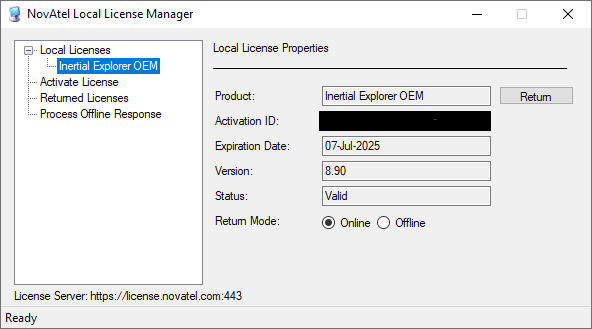

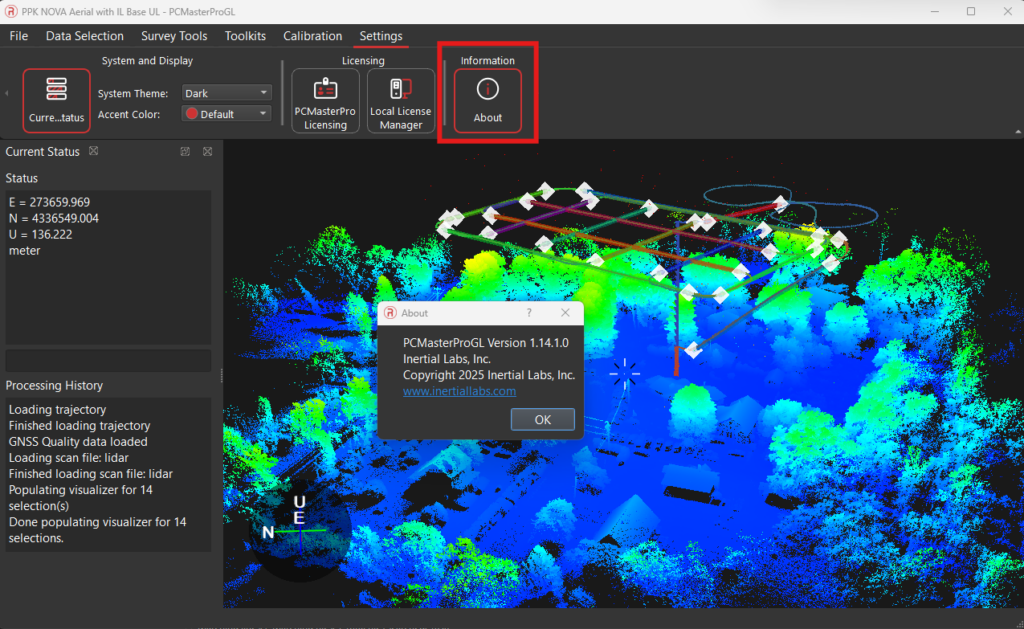
  • Open PCMasterPro and go to:
    • Settings > Local License Manager
    • Settings > PCMasterProGL Licensing
  • Click Return/Remove on all active licenses. This ensures licenses are not lost during the update.
Figure 1: Shows PCMasterPro Licensing Menus

Step 2: Uninstall the Current Software #

  • Fully close all PCMasterPro programs.
  • Uninstall by either:
    • Using standard Windows uninstall process: Control Panel > Programs > Uninstall a Program, or
    • Running the uninstall.exe file from within the software installation folder.

Step 3: Download the New or Previous Version #

  • Visit lidarpayload.com
  • Navigate to:
    • Resources > Software and Firmware
  • Select and download the desired PCMasterPro Installer (latest or older version).

Step 4: Install the Software #

  • Open the downloaded installer.
  • Follow the on-screen prompts to complete the installation.

Step 5: Confirm and Activate Your Licenses #

  • Reopen PCMasterPro.
    • Update can be confirmed by going to About > Application Version
  • Navigate again to:
    • Settings > Local License Manager
    • Settings > PCMasterProGL Licensing
  • Activate your licenses for continued access to your tools.
Figure 2: Shows PCMasterPro software version information